Apple Music has long been tied to the Apple ecosystem, often steering users toward the Music app on Mac or iTunes on Windows. That works well for those already in that setup. But what if you’re on a Chromebook? Or using a work computer where installing apps isn’t allowed? Or maybe you simply prefer not to add extra software?
Whatever the reason, there’s an easy way to enjoy Apple Music right from a browser—no downloads required. This guide shows you step by step how to do it across Chrome, Firefox, Safari, or Edge, with full access to your library and playlists.
How to Play Apple Music in Any Browser?
Open the Apple Music Web Player
Start by opening your preferred browser and going to https://music.apple.com. This is the official Apple Music web player that works across major browsers and platforms. You don't need to use a Mac or have Safari installed. Chrome, Edge, Firefox, and other modern browsers handle it just fine.
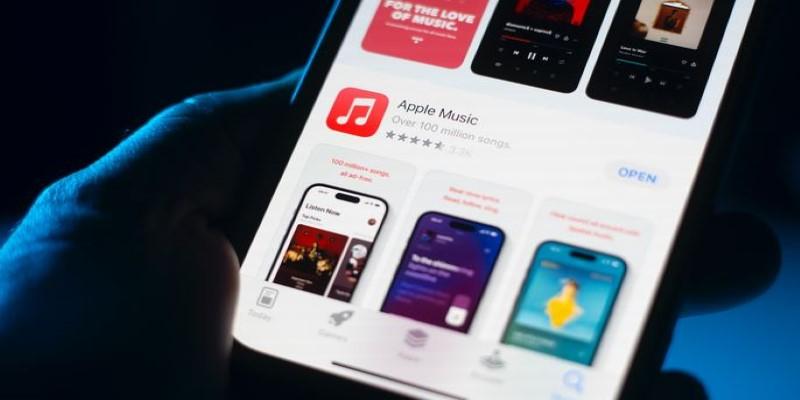
Once the page loads, you’ll see a layout that closely resembles the Apple Music app—featuring the Listen Now section, Search bar, Browse categories, and your Library (once signed in).
Sign In with Your Apple ID
In the top-right corner, click the “Sign In” button. You’ll be prompted to enter your Apple ID credentials. Make sure you use the same Apple ID that your Apple Music subscription is tied to.
Once you enter your ID and password, you might need to verify your identity through two-factor authentication. That means checking your iPhone or other Apple device for a code to enter in the browser. This step confirms it’s really you trying to access your account.
Access Your Music Library
After signing in, your personal music library becomes available in the web interface. This includes playlists you’ve created, albums you’ve saved, and any songs you’ve added from Apple Music’s catalog. Your recently played tracks will also show up, just like in the app version.
You can click on “Library” in the left-hand menu to browse by playlist, artist, album, or song. Navigation is simple and mirrors the app experience, so you won’t feel lost if you’ve used Apple Music on an iPhone or Mac.
Browse and Search for New Music
If you want to explore more than what’s already in your library, use the “Browse” tab to see curated playlists, genre sections, and featured content. You can also hit “Search” at the top of the sidebar to look for specific songs, albums, artists, or playlists.
Search results are categorized clearly, separating top results, songs, albums, and music videos. Clicking any of them starts playback instantly in the browser.
Use Playback Controls and Settings
Once music starts playing, a playback bar appears at the bottom of the screen. Here you can pause, skip, shuffle, and repeat tracks. The volume slider lets you control sound right within the browser, and you can also see lyrics (when available) or add a track to your library or playlists.
If you right-click (or tap the “...” next to a song or album), you’ll get additional options like “Add to Library,” “Add to Playlist,” or “Play Next.”
Playback works even if you switch tabs or open a new one. The stream will continue in the background, letting you keep working or browsing while music plays.
Create and Manage Playlists
You can manage your playlists just as easily in the web version. Click on “Library,” then “Playlists,” and you’ll see all your existing ones. To create a new playlist, click the “+” icon, give it a name, and start adding tracks by dragging them in or selecting “Add to Playlist” from the menu next to any song.
Playlists update in real time and sync across all your devices. So if you create one from your browser, it’ll appear on your iPhone, iPad, or any other device where you're signed in.
Adjust Web Player Settings (Optional)
Although the web version doesn’t have every single feature the app does, it still includes the essentials. Click your profile icon (top-right corner), and choose “Settings” to adjust account preferences. You can change your subscription plan, manage devices, and update payment details.
 Note that music quality settings are managed automatically in the web player. There isn’t an option to manually choose bit rate, but the stream adjusts to match your connection speed, just like on the app.
Use the PWA (Progressive Web App) Option for Better Access
If you use Chrome or Edge, you can install the Apple Music web player as a Progressive Web App. This gives you a more app-like experience with a dedicated window and icon on your desktop or taskbar.
To do this in Chrome: Click the three-dot menu at the top-right of the browser, choose “More Tools,” then “Create Shortcut.” Check the “Open as window” box and click “Create.” Now, Apple Music will behave like a standalone app.
On Microsoft Edge, click the three-dot menu, go to “Apps,” then “Install this site as an app.” Follow the prompts to pin it.
While this doesn’t change functionality, it gives quicker access and a cleaner feel—without the clutter of browser tabs.
Log Out When Finished (Especially on Shared Devices)
When you're done listening, especially on a shared or public computer, make sure to sign out. Click your profile icon and choose “Sign Out.” This keeps your account safe and prevents others from accessing your music or personal information.
Conclusion
Apple Music’s browser version makes listening simple and convenient. You don’t need to install extra apps—just sign in with your Apple ID and your entire library, playlists, and saved songs appear instantly. It works on any device with a modern browser, whether it’s a work computer, shared laptop, or Chromebook. The web player mirrors the app’s layout, letting you browse, search, and manage playlists with ease. Everything syncs automatically across devices, so changes made in the browser show up on your phone or tablet. It’s a clean, no-hassle way to enjoy Apple Music anywhere—just open a browser and start listening.