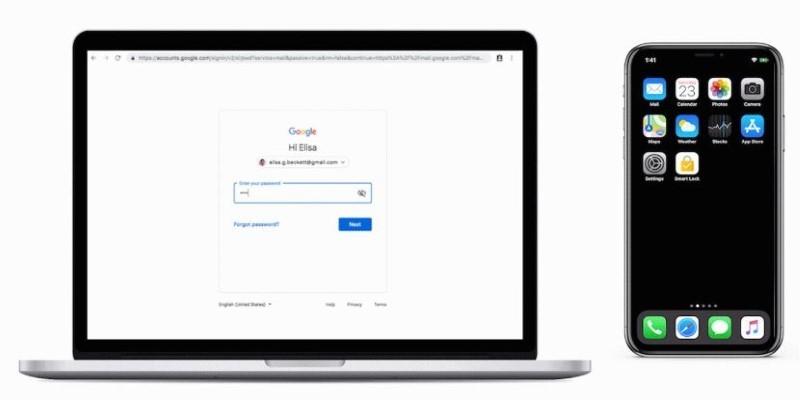
Most people still rely on text messages or authenticator apps to secure their accounts, but these aren’t the strongest options anymore. Texts can be intercepted and codes copied. If you own an iPhone, you already have a stronger way built in. Google now lets you turn your iPhone into a physical security key for two-factor authentication. This doesn’t require any new hardware, and the process is surprisingly simple. With a few steps, your everyday device can become a trusted guard for your Google account.
What Does It Mean to Use Your iPhone as a Security Key?
When you register your iPhone as a Google 2FA security key, it becomes a physical device that proves your identity during sign-in attempts. Instead of typing in a verification code, you’ll get a prompt on your iPhone asking whether to approve or deny the login. The device must be nearby since the confirmation relies on Bluetooth.
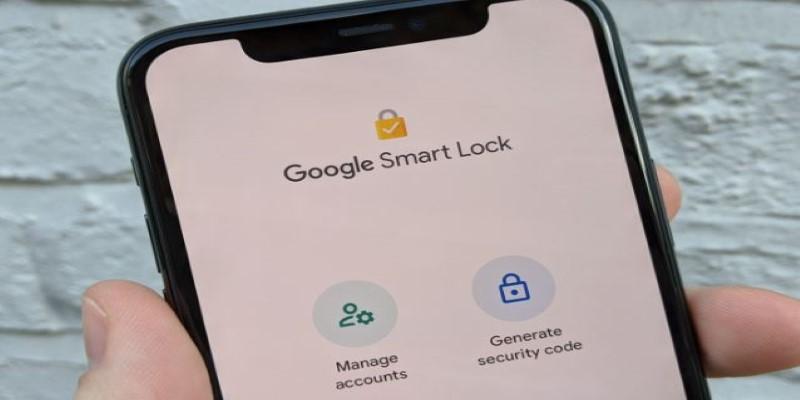
Your phone’s lock screen, secure chip, and Google’s servers work together to confirm the login is legitimate. Unlike codes that can be intercepted or stolen, this system depends on your physical phone. The only way for someone to bypass it is by holding your unlocked device in hand, which makes it much more secure than standard text-based authentication.
This method doesn’t require Wi-Fi or mobile data at the time of verification. As long as Bluetooth is enabled, your iPhone can complete the security check. To qualify, your phone should be running iOS 10 or later and be signed into your Google account either through Safari or the Gmail app. By relying on something you physically own, the barrier to unwanted access becomes significantly higher.
How to Set It Up Step-by-Step?
Before you start, confirm that 2-Step Verification is enabled on your Google account. Without it, the security key option won’t be available.
Head to https://myaccount.google.com/security and log in. Under “2-Step Verification,” tap “Get Started” if you haven’t enabled it yet. Google may ask for your phone number or to set up a verification app during this process. Once activated, you’ll see extra options appear, including “Security Key.”
Choose “Add Security Key.” When prompted, select “iPhone.” If Bluetooth is on and your device is signed into your Google account, it will appear on screen. Approve the selection, and accept any permissions regarding notifications and proximity access. Google then registers your iPhone as a valid security key.
Testing the setup is straightforward. Try signing into your Google account from another computer or browser. After typing your password, you won’t see a code prompt — instead, your iPhone will display a request to approve the login. Tap “Yes” to continue. This proves your iPhone is now working as the security key. Remember that the phone must be physically near the login device with Bluetooth enabled for it to work.
What Happens Behind the Scenes and Why It’s Safer?
The strength of this method lies in how it works. Traditional two-factor authentication uses something you know, like a code, paired with something you have, such as your phone. The flaw is that codes can be intercepted through phishing or malware. With a security key, there are no codes to steal.
Instead, your iPhone uses a secure element called the Secure Enclave to process cryptographic verification. When you approve a login, it signs a digital challenge issued by Google. This signature proves the request is authentic without revealing your private key. That private key never leaves your iPhone, making it far harder for attackers to compromise.
This system follows FIDO (Fast Identity Online) standards, supported by major tech companies. It replaces fragile, code-based logins with public-key cryptography. Even if someone tricks you into visiting a fake Google page, the request will fail since the page can’t produce the correct cryptographic handshake. That’s why this method blocks phishing attempts in ways codes can’t.
From a user perspective, it feels faster too. Instead of typing a six-digit number or waiting for a text, you just confirm with a single tap. The underlying process is highly complex, but all you see is a simple, reliable prompt.
What to Know About Limitations, Compatibility, and Recovery?
While this method offers excellent security, there are a few conditions to understand. Your iPhone security key works in browsers such as Chrome, Safari, and Edge, but not with Firefox at this time. It requires Bluetooth to confirm proximity, so your iPhone must be near the device attempting login.
Your phone also needs to remain signed into the Google account you’re protecting. Signing out will temporarily disable its function as a security key until re-verified. This could be an issue if you frequently switch accounts on your device.
It’s equally important to prepare for emergencies. If your iPhone is lost or broken, and it’s your only security key, you could be locked out. Google encourages adding backup methods such as printed recovery codes, another smartphone, or even a physical hardware key like a YubiKey. These backups act as lifelines, so you aren't completely dependent on one device.
For high-risk users enrolled in Google’s Advanced Protection Program, iPhone keys are supported, but Google requires at least two registered security keys to ensure there’s always a backup available. This setup gives both strong security and practical resilience.
In daily use, most people will find it simple and quick. Instead of juggling apps or typing in codes, you approve sign-ins with a single tap. The added security runs in the background without slowing you down.
Conclusion
Turning your iPhone into a security key for Google’s 2FA blends simplicity with stronger protection. It takes only minutes to set up, but it removes weak points tied to texted codes or authenticator apps. Each login attempt must now pass through your physical device, making phishing attempts almost impossible. The process uses built-in encryption that stays invisible to you while blocking threats effectively. Just by carrying your iPhone, you gain an extra layer of defense that follows you everywhere. If online security matters to you, setting up your iPhone this way is a smart, lasting safeguard.