Most people think of the Wi-Fi password as just another code to remember, but it’s far more than that. Behind the scenes, it’s known as a network security key, and it quietly works as the lock on your digital front door. Every time you connect a phone, laptop, or smart device, this key makes sure you’re allowed in and strangers are kept out. It might look simple—a jumble of letters and numbers—but it protects your internet connection and personal data. Understanding what it is and where to find it makes everyday online life much easier.
What Exactly Is a Network Security Key?
A network security key is a digital password used to connect a device to a secured wireless network. It acts as a shared secret between your router and device to establish a safe link. Without it, your phone, laptop, or smart device can’t access the internet through that network.
Its main function is to prevent unauthorized access. If someone doesn’t have the key, they can’t use your connection. It also protects the data being transmitted between your router and connected devices, ensuring your activity stays private.
Most home and office networks rely on this key for both convenience and protection. Once entered, devices usually remember it, creating a seamless experience for users without compromising security.
Types of Network Security Keys
Different types of encryption call for different styles of network security keys. These keys vary depending on how the router is configured, and some are more secure than others.

WEP (Wired Equivalent Privacy) was the original method, but it’s now considered outdated. It used a fixed key that was easy to crack, making it vulnerable. Devices and routers still supporting WEP are rare, but if you come across one, switching to a newer method is a smart move.
WPA (Wi-Fi Protected Access) was a step up from WEP. It introduced dynamic key generation and improved protection. Still, WPA had its own weaknesses, particularly around brute-force attacks.
WPA2, which many routers use today, offers stronger encryption with AES (Advanced Encryption Standard). It’s compatible with most devices and offers solid protection for home and small business networks.
WPA3 is the latest version, offering tougher security, especially on open and public networks. It resists password-guessing attacks and adds individualized encryption for each connection. While not yet universal, more new routers and devices are beginning to support it.
Despite the differences in encryption methods, the network key itself functions the same way: it's the password that lets your device connect and stay secure.
Where To Find Your Network Security Key?
There are a few places where you can find your network security key, depending on the device and how your network is set up.
On the Router Label
Most routers come with a label, usually on the back or underside, that lists the default network name (SSID) and the corresponding security key. If you haven’t changed the default settings, you’ll find the key there. It’s often labeled “Wi-Fi Password,” “Wireless Key,” or “WPA Key.”
In Router Settings
If you’ve changed the default password or just want to check what it is, you can log in to your router’s settings. Open a browser, type the router’s IP address (commonly 192.168.0.1 or 192.168.1.1), and log in. You’ll need the admin username and password, which may also be on the label unless you’ve changed them.
Once logged in, look for a section like “Wireless Settings” or “Wi-Fi Settings.” The current security key will be listed there, though it might be hidden behind asterisks. There’s usually an option to show it or change it.
On Windows Devices
If you’ve previously connected your computer to the Wi-Fi, it will have saved the key. Here’s how to view it:
- Go to Control Panel > Network and Sharing Center
- Click on your Wi-Fi connection
- In the new window, click “Wireless Properties”
- Go to the “Security” tab
- Check the box that says “Show characters”
You’ll see the saved network key in plain text.
On macOS Devices
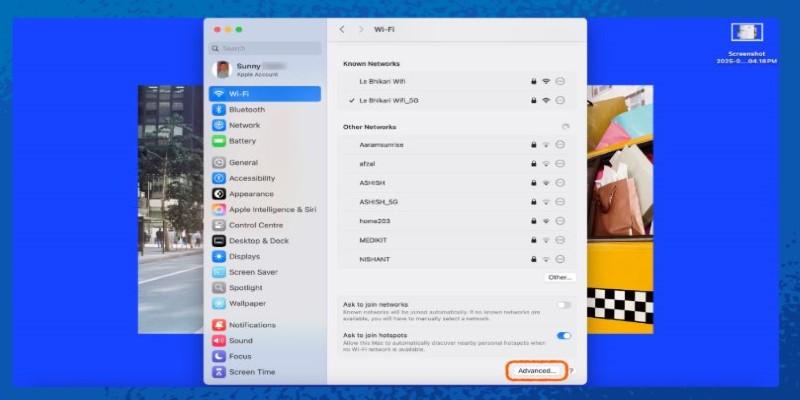
Mac computers store Wi-Fi passwords in the Keychain. To find it:
- Open "Keychain Access" (search for it using Spotlight)
- In the left menu, select “System” and then “Passwords”
- Find your Wi-Fi network name
- Double-click it, check the “Show password” box
- Enter your Mac’s admin password
The key will then be visible.
On Android or iOS
Mobile devices don’t display the saved key directly. On Android 10 or newer, you can view the QR code for the network, and scanning it with another phone can reveal the password. On iPhones, the password is synced across iCloud if you’re using a Mac, and you can find it in Keychain Access as mentioned above.
The Importance of Knowing Your Network Security Key
Many people only think about their network key when connecting a new device. But knowing it can help in more situations than you'd expect.
If your Wi-Fi starts acting up and you reset your router, you’ll probably need to re-enter the key on all devices. If you’ve lost it or don’t know where to find it, that’s an extra hassle.
Changing the key now and then is a smart habit—especially if you’ve shared it. This helps limit access and keeps your network secure. Some routers let you set up a guest network, giving visitors temporary access without exposing the main key or shared devices.
If you’re concerned about someone using your Wi-Fi without permission—maybe a neighbor or an old device—changing the key disconnects everything. Only those with the new password can get back on.
Even if you rarely think about it, your network security key helps keep your home internet safe and in your control.
Conclusion
A network security key may look like an ordinary password, but it protects your Wi-Fi from outsiders. Whether you’re adding a new device, resetting your router, or checking settings, knowing where to find and manage it matters. It takes little effort yet gives you full control over who connects. Handled wisely, this small string of characters safeguards your connection and keeps your online space private and secure.