
Renaming a few files is simple, but when you’ve got hundreds that need reordering or renaming, the task gets repetitive and frustrating. Whether you’re cleaning up downloaded files, organizing photos, or sorting project documents, doing it one by one doesn’t scale.
That’s where PowerRename comes in. It’s part of Microsoft’s free PowerToys toolkit for Windows 10. PowerRename adds a file-renaming utility right into your system so you can batch rename quickly, accurately, and with more control than Windows offers by default.
What Is PowerRename?
PowerRename is one of the utilities bundled into PowerToys, which adds extra functionality to Windows 10. Its purpose is simple but powerful: let users rename multiple files in bulk with advanced search and replace tools. It integrates directly into File Explorer and appears as an option when you right-click on selected files.

Standard Windows tools only let you rename files one at a time or assign them a new base name followed by a number. This doesn't work well when your changes need to be more specific—like inserting keywords, removing date stamps, fixing typos, or aligning file names with a naming system.
PowerRename goes beyond that. It gives you a preview of what every file will look like after renaming. You can undo mistakes easily and experiment without worry. The tool supports search and replace, character removal, position-specific text edits, and more. If you know regular expressions, it becomes even more flexible.
The interface is also clear: it gives you just the fields you need and a list showing old and new file names before anything changes. You don’t need a tech background to use it effectively, though there’s room to learn advanced options if you want to.
How It Works?
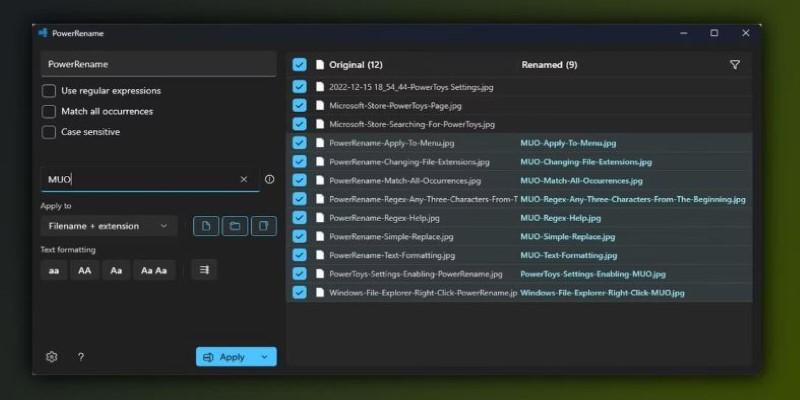
Using PowerRename begins with selecting multiple files in File Explorer. You right-click and choose “PowerRename” from the menu. A new window opens, where you see a search box at the top, a replace box beneath it, and a large preview area showing what each file will look like before and after the change.
Say you have 50 screenshots titled “Screenshot (1).png” through “Screenshot (50).png,” and you want them labeled “Presentation1_” instead. Type “Screenshot” into the search field and “Presentation1” into the replace field. The tool instantly shows a preview of every affected file. If it looks good, you apply the changes.
You can also:
- Make your search case-sensitive.
- Use regular expressions to find patterns, like numbers or symbols.
- Exclude file extensions from changes, avoiding issues with file types.
- Only target file names, or include folders if needed.
- Undo the last action if you change your mind.
This process is helpful when file names include unwanted prefixes, version codes, or inconsistent labeling. Rather than editing every file manually, PowerRename handles it all in one move.
Benefits of PowerRename
The appeal of PowerRename lies in how much time it saves and how consistent it makes your file naming. Whether you're managing personal media or handling office documents, naming matters more than people think. It helps when sorting, sharing, archiving, or just trying to find something later.
Take the example of someone with years’ worth of photos stored across multiple folders—each named differently by phone models, dates, or apps. Renaming them all to a standard format like “Trip_2023_001” and so on takes just a few steps. Without a tool like PowerRename, that task could eat up your afternoon.
Office workers often export files like invoices, reports, or meeting notes. Many times, those files have long default names or contain extra characters. Replacing a chunk of text or inserting a project code into each file name helps when you're dealing with shared folders or systems that require uniformity.
Students, designers, or anyone working with batch downloads often end up with cluttered file names. PowerRename gives you a way to clean up that digital mess fast.
For users with experience, regular expression support lets you target patterns across large data sets. Want to remove everything after a certain character in 300 files? You can. Want to number your files starting from a specific point? It takes just a few clicks.
It brings order where there’s usually chaos, and even if your needs are simple, the preview window ensures you're never guessing. You know exactly what change you're making.
Getting Started with PowerRename
To use PowerRename, you’ll first need PowerToys installed. It’s available for free through Microsoft’s GitHub page. Installation is quick and doesn’t require setting up an account. Once it’s installed, open the PowerToys app and make sure PowerRename is turned on.
From there, everything is built into File Explorer. You select your files, right-click, and choose PowerRename. The interface gives you control right away without diving into settings.
Start small—try renaming a few downloaded files or photos using simple find-and-replace commands. You’ll get comfortable with it in a few minutes. If you ever mess something up, you can easily undo it or skip files you’re not sure about.
There’s no need to learn regular expressions unless you want to. But if you do, you’ll open up even more ways to edit files with precision. PowerRename makes it optional, not required.
You can also set preferences, like keeping extensions unchanged or applying changes recursively to subfolders. These settings help keep file types intact and control the scope of the rename.
The more you use it, the faster your workflow becomes. What used to take half an hour becomes a one-minute task. And once you get the hang of it, you’ll find yourself relying on it more than you expected.
Conclusion
PowerRename is a simple yet highly practical tool that can handle a repetitive task most of us would rather avoid. Whether you're sorting photos, managing downloaded documents, or organizing folders for work, having a batch renaming utility built right into Windows 10 makes everything smoother. It’s part of PowerToys, free, and easy to use for anyone—not just tech-savvy users. With instant previews, undo options, and advanced features for those who need them, PowerRename turns bulk renaming from a hassle into a quick task. It’s the kind of utility you didn’t know you needed until you start using it.