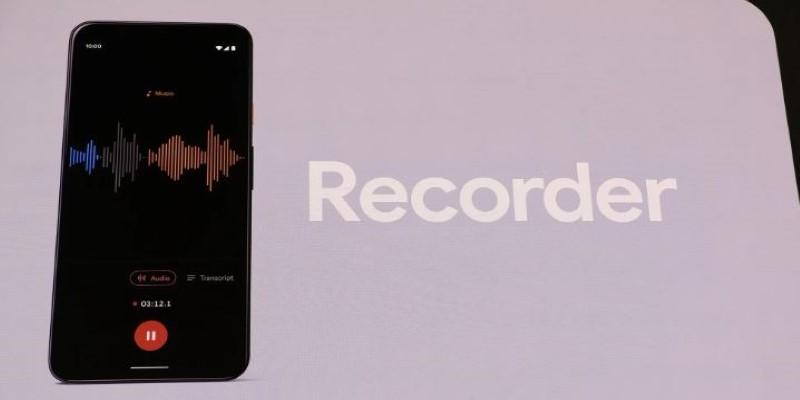
If you’ve ever tried Google’s Recorder app, you know how practical it is. It doesn’t just record sound — it transcribes your voice into searchable text, right on the device, no internet needed. It quietly became one of the most useful tools Google introduced, but it never made its way to older Pixel phones like the 2, 3, or 3a. Thankfully, there’s a workaround. Even if Google didn’t officially release it for those models, you can still install it manually, and it works just fine with a little effort and the right download.
What is Google Recorder and Why It Isn’t Available on Older Pixels?
Google Recorder is more than a basic voice memo app. It picks up what you say, transcribes it as you talk, and lets you search through the recording later. All of it happens offline, which keeps things private and fast. For people who attend meetings, interview others, or just need to remember ideas on the go, this app can be a quiet helper.
The Recorder app first arrived with the Pixel 4 and was kept exclusive. Google slowly brought it to newer models, but older ones like the Pixel 2, 3, and 3a were left out — not because they couldn’t run it, but because Google never updated the Play Store compatibility for them. These phones still have the hardware and software needed to handle it.
That’s where sideloading comes in. Instead of downloading from the Play Store, you can get the app manually from a trusted site, install it yourself, and use it just like you would on a newer Pixel. It doesn’t require rooting your phone or using any complex tools. You just need to be running Android 10 or later, which most of these older Pixel phones already are.
How to Install Google Recorder on Pixel 2, 3, 3a?
First, check that your device is running Android 10 or above. The Recorder app relies on certain system-level features introduced in Android 10, so earlier versions won’t support it properly.
Change Your App Permissions
On your Pixel, open Settings → Apps & notifications → Special app access → Install unknown apps. Pick the browser or file manager you plan to use for opening the APK. Tap it and enable “Allow from this source.” This allows you to install apps manually without needing the Play Store.
Once you’re done with the installation process, you can go back and turn this permission off for added peace of mind.
Get the APK File
Use your browser to visit APKMirror.com. This site stores original app packages from Google and other developers. Search for “Google Recorder” and browse through the results. For Pixel 2, 3, and 3a, versions between 1.1 and 2.0 are ideal. Later versions may have issues on older hardware or require Android 12 or higher.
Make sure to download the version with the “arm64” architecture, since that’s what your Pixel uses. Tap the version, scroll down to “Download APK,” and start the download.
Install the App
Once the APK finishes downloading, open it using your file manager or browser. Your device will ask if you want to install the app — confirm and proceed. The installation should only take a few seconds.
If the app doesn’t install or gives an error, try a slightly older version. Sometimes newer builds depend on system features that aren't present on your phone.
Test It Out
Launch the Recorder app. The first time you open it, the app will ask for microphone and storage permissions. Grant them. Start a test recording. Speak clearly and watch as the words appear on the screen in real time. If transcription doesn’t appear, restarting the phone usually solves the issue.
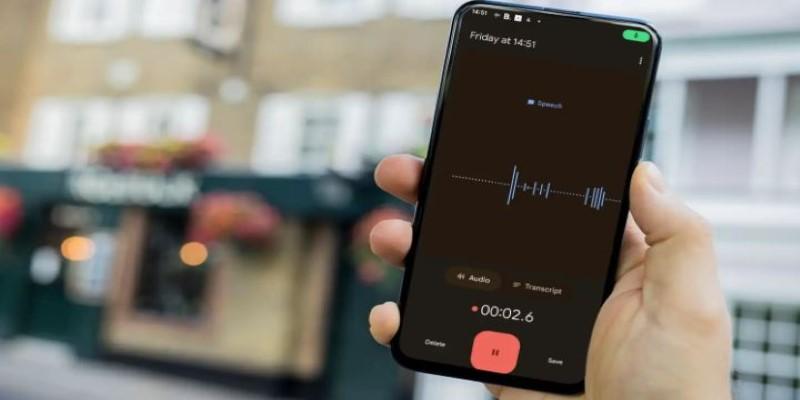
All core features — recording, transcription, saving, and playback — should work right away. The app stores audio and text locally on your device, which keeps things simple.
Optional Add-Ons
Some newer features, like auto-titling, smart search filters, or syncing recordings to your Google Account, may not work on sideloaded versions. If you're curious to explore those, you can install extra system apps from APKMirror like Pixel Tips or the Device Personalization Services, but they aren't needed for basic functionality.
Sticking with a stable version of Recorder is often the best way to avoid crashes or slowdowns.
Things to Know Before and After Installing
Once installed, the Recorder app runs surprisingly well. Pixel 2 and 3a users often report the same smooth experience that newer models have. Real-time transcription works locally, and files are saved in an easy-to-access folder.
Some limitations are worth knowing. Features that depend on newer Android versions or Google Account integration may not appear. You won’t be able to sync recordings to your Google Drive automatically or edit titles with AI assistance unless you're using a more recent device with full support.
Also, because you’re installing the app outside the Play Store, it won’t auto-update. If you want to get a newer version later, repeat the process and sideload the new APK. Keep in mind that not every update improves performance for older phones — some newer versions remove compatibility entirely.
Your recordings are stored under the “Recordings” folder in internal storage. If you uninstall the app, make sure to back up this folder if you don’t want to lose your files. Copy them to Google Drive or your computer just in case.
Lastly, avoid installing APKs from random websites or social media links. Stick to well-known sources like APKMirror. They verify that the apps haven't been modified and provide the original files directly from Google.
Conclusion
Google Recorder is a useful app that should have been available to more Pixel users from the start. If you have a Pixel 2, 3, or 3a, you’re not out of luck — sideloading is all it takes to bring it to life. The process isn’t risky, doesn’t void your warranty, and takes only a few minutes. You don’t need root access or special skills. Just download, install, and start recording. Even though support from Google has moved on, your older phone can still do plenty. Recorder proves good tools don’t need the latest hardware.